
CH1_CD Installation Introduction_NcEditor
today
2026-06-10
local_offer
CNC, CADCAM
visibility
209
1. CD Installation Introduction
1.1 CD Installation Introduction

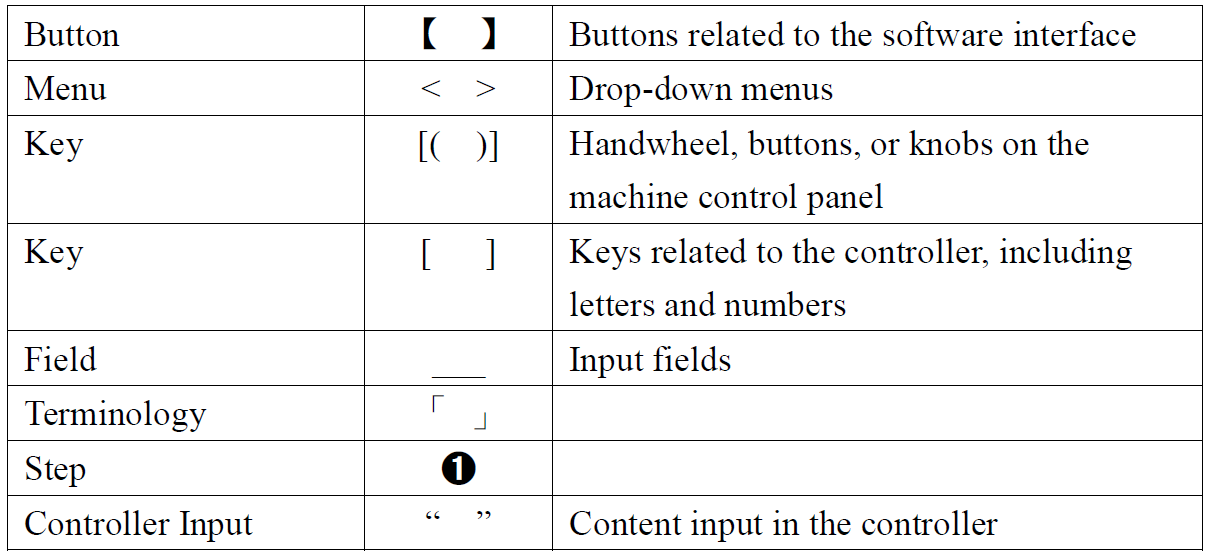
1.2 Symbol Explanations
1.3 System Requirements
1.4 Software Installation
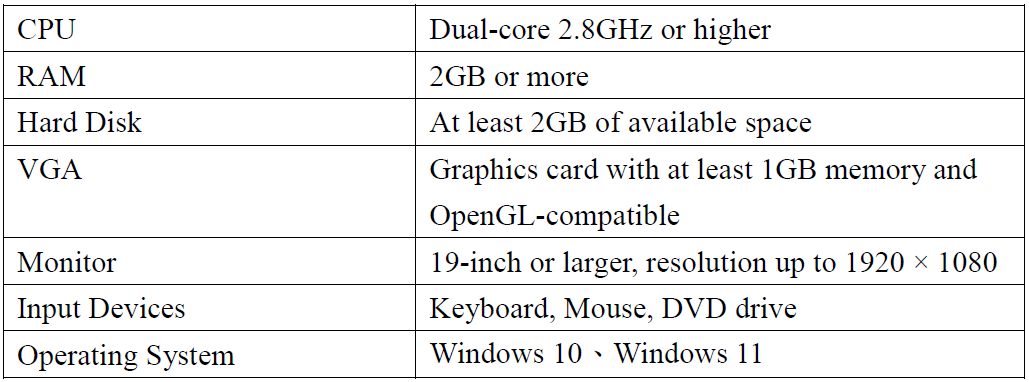
Before starting the installation, please make sure your computer meets the system requirements
1.4.1 Installation Steps
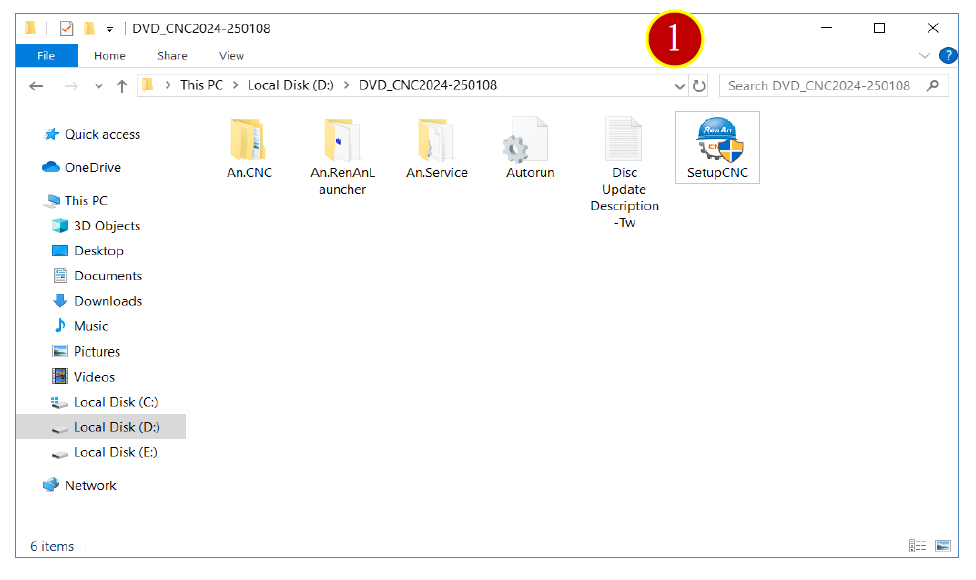
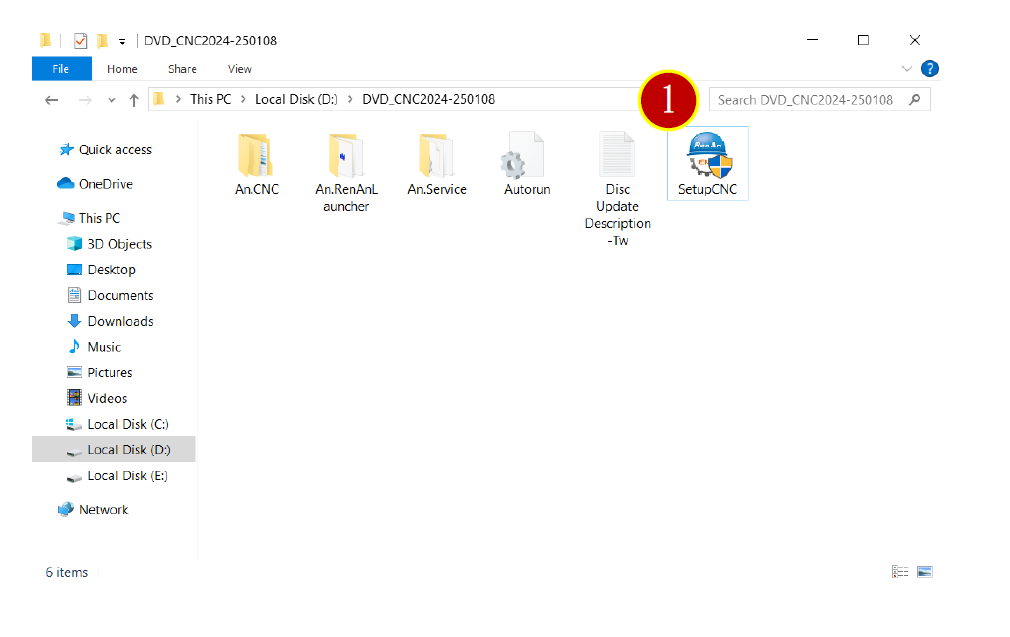
Insert the RenAn product CD into the CD/DVD drive. The setup program will launch automatically. If it does not launch automatically, manually run the setup executable from the CD.
Example: “D:\SetupCNC.exe” (Here, D:\ is the drive letter for your CD/DVD drive)
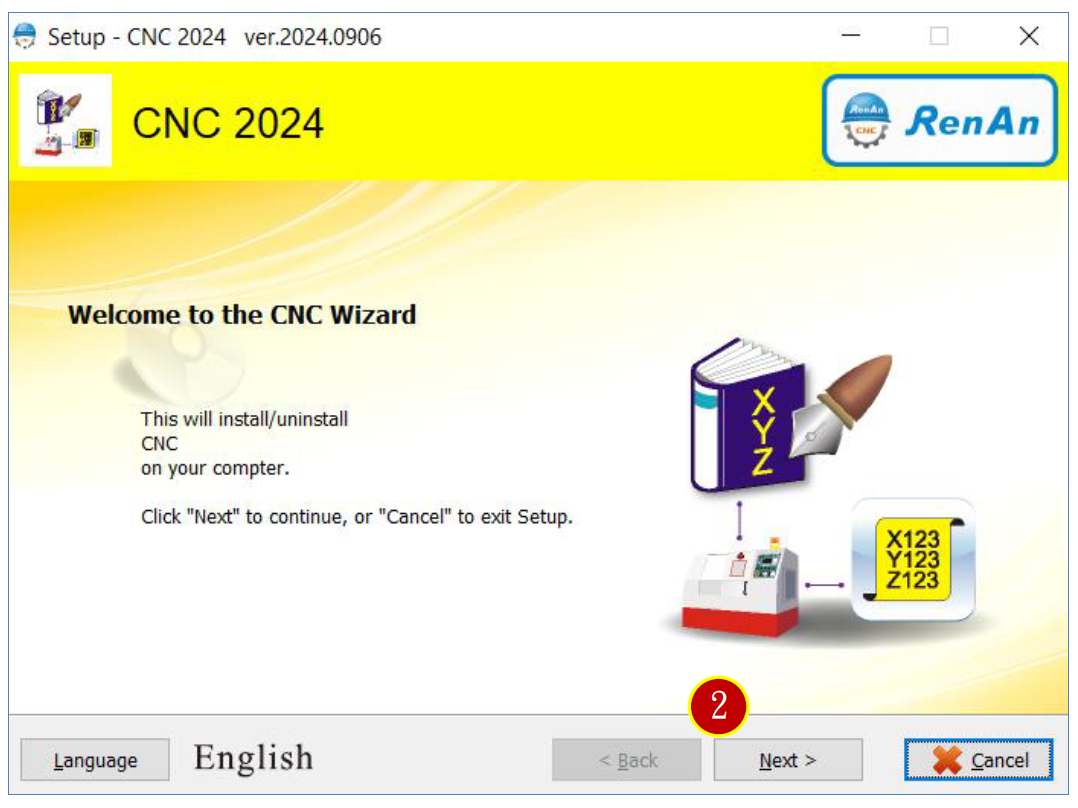
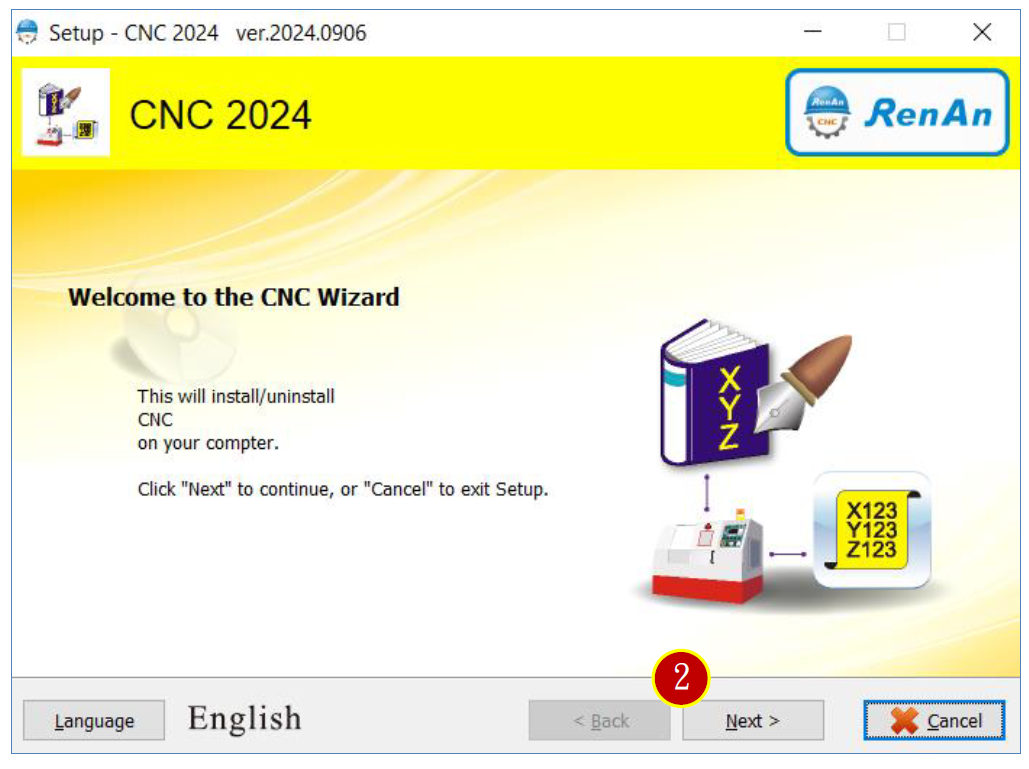
(1) On the welcome screen, click【Next】
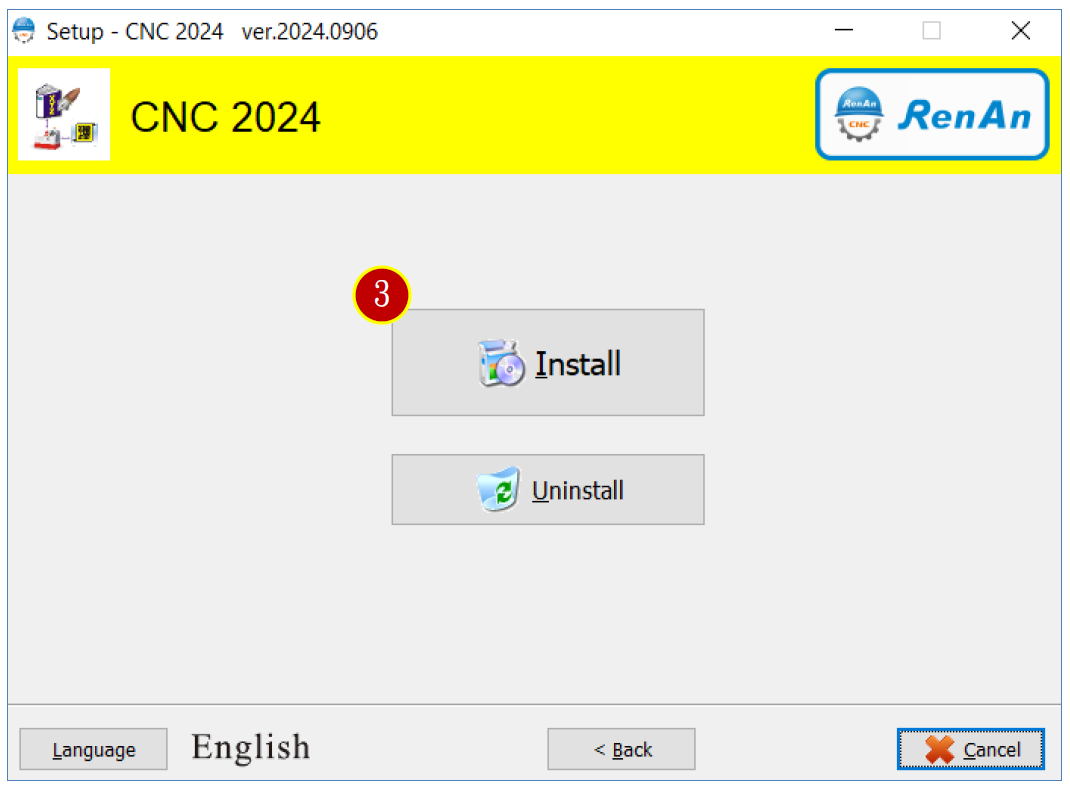
(2) Click【Install】
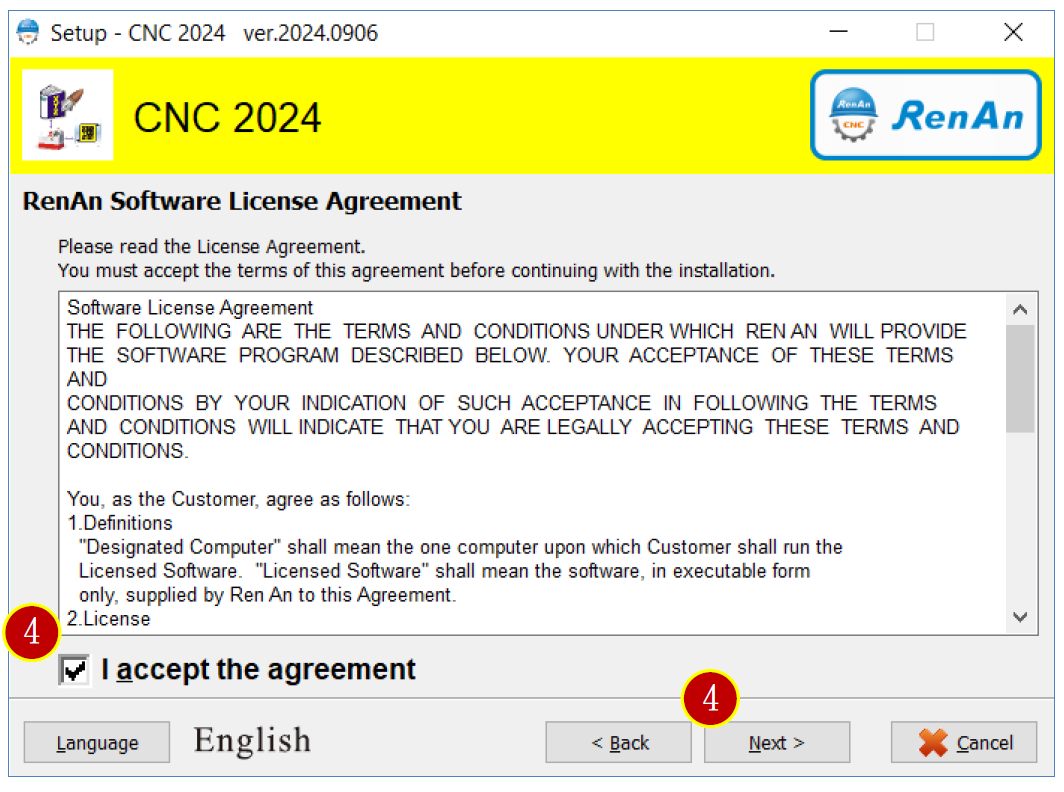
(3) Read the license agreement, check【I accept the agreement】, then click【Next】to proceed.
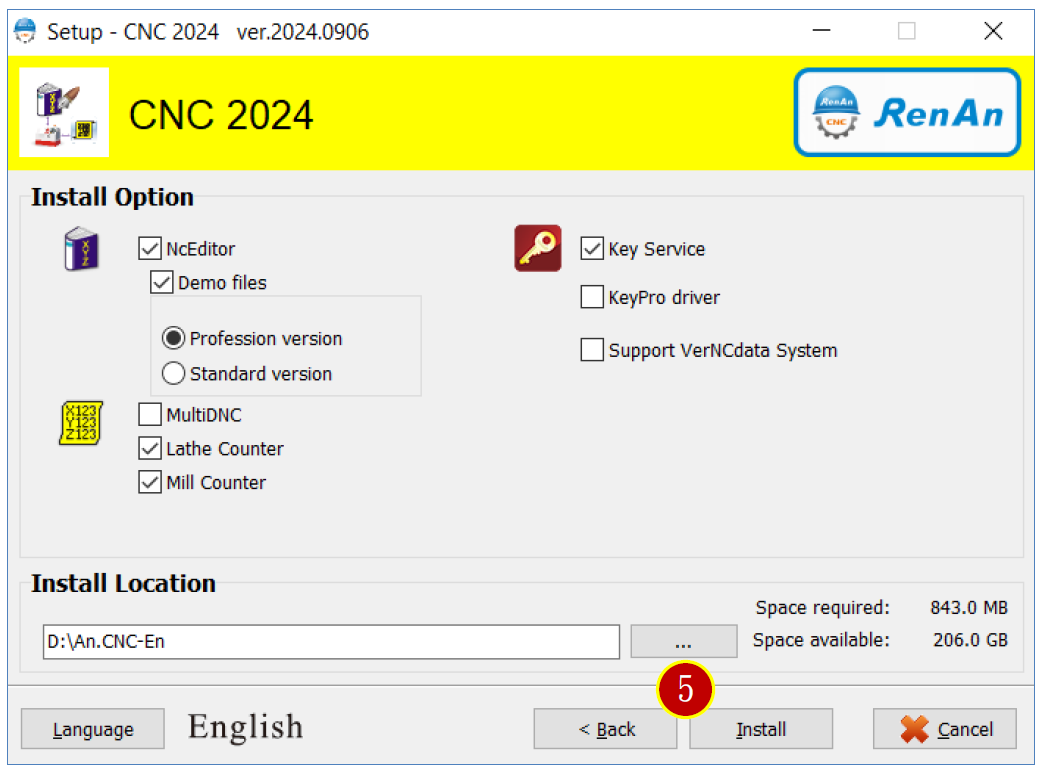
(4) Installation Options, select the desired modules:
☑ NcEditor Program Editing Management + Simulation System
☑ Sample Data
□ MultiDNC CNC Multi-port Transmission
☑ Lathe Graphic Expert
☑ Milling, Drilling, and Tapping Expert
□ Key Service, selecting indicates installing Key Service,
□ KeyPro Driver, selecting indicates installing KeyPro Driver
□ Supports [CNC Data Transmission and Version Management System],
Installation directory defaults to C:\An.CNC. Click【…】to manually change the installation path.
Then click【Install】
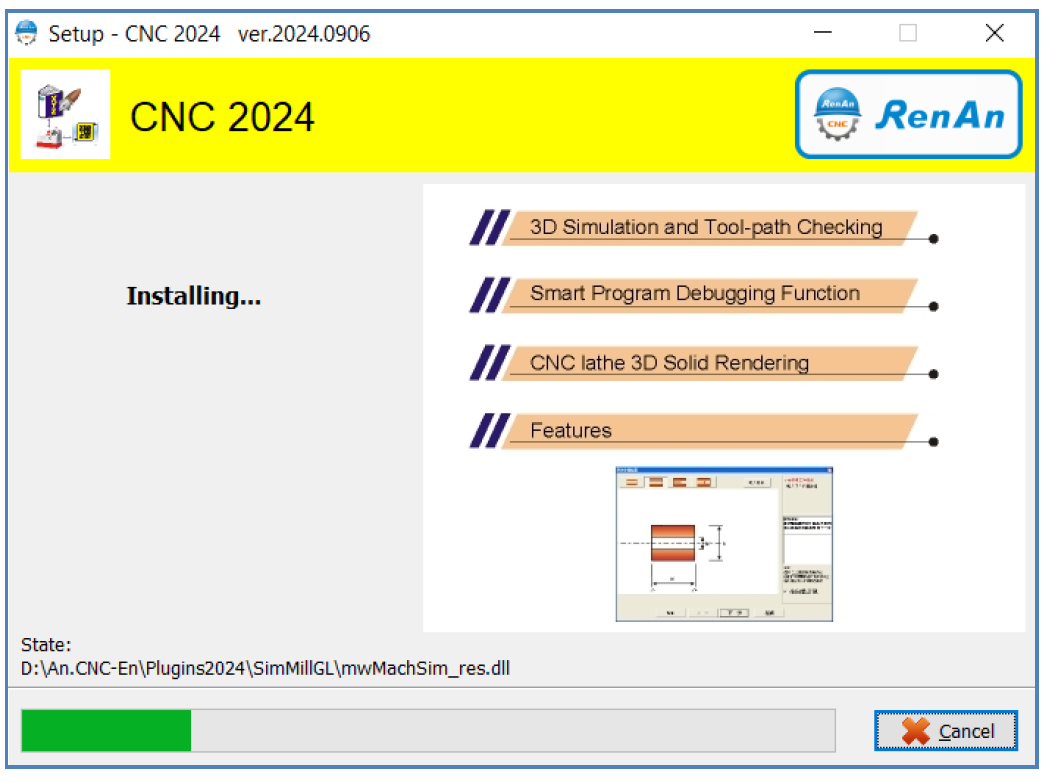
(5) Installing – please wait a few minutes
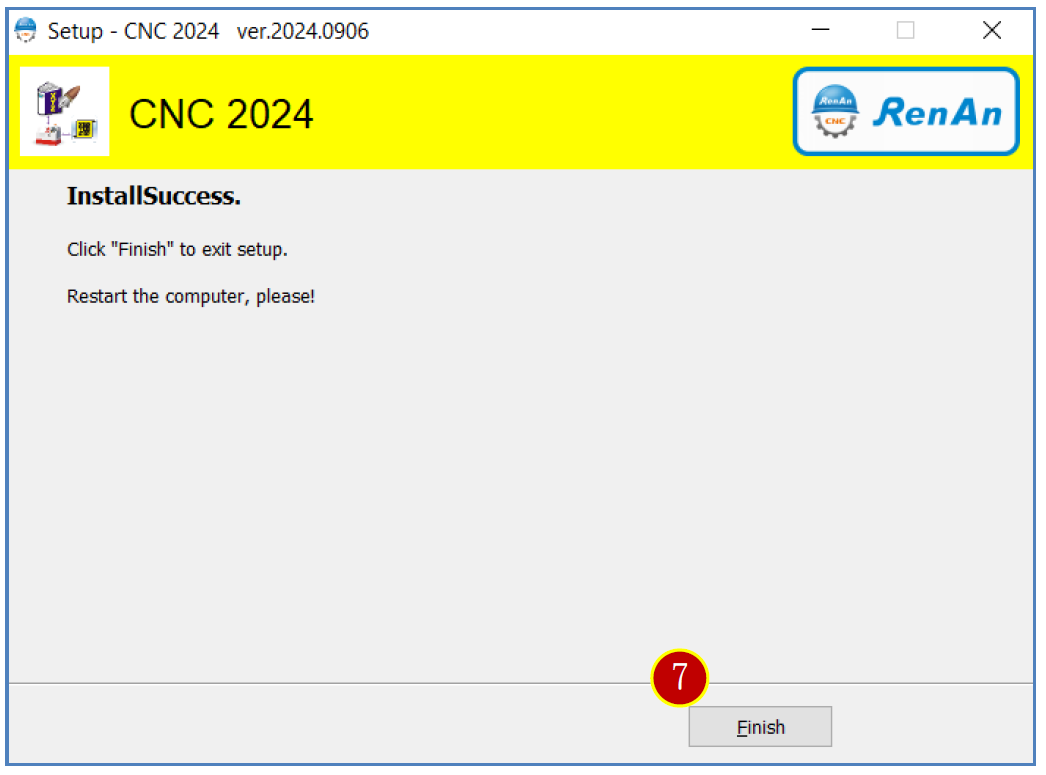
(6) Installation successful–click【Finish】to complete the setup. A system restart is required to run the software properly.
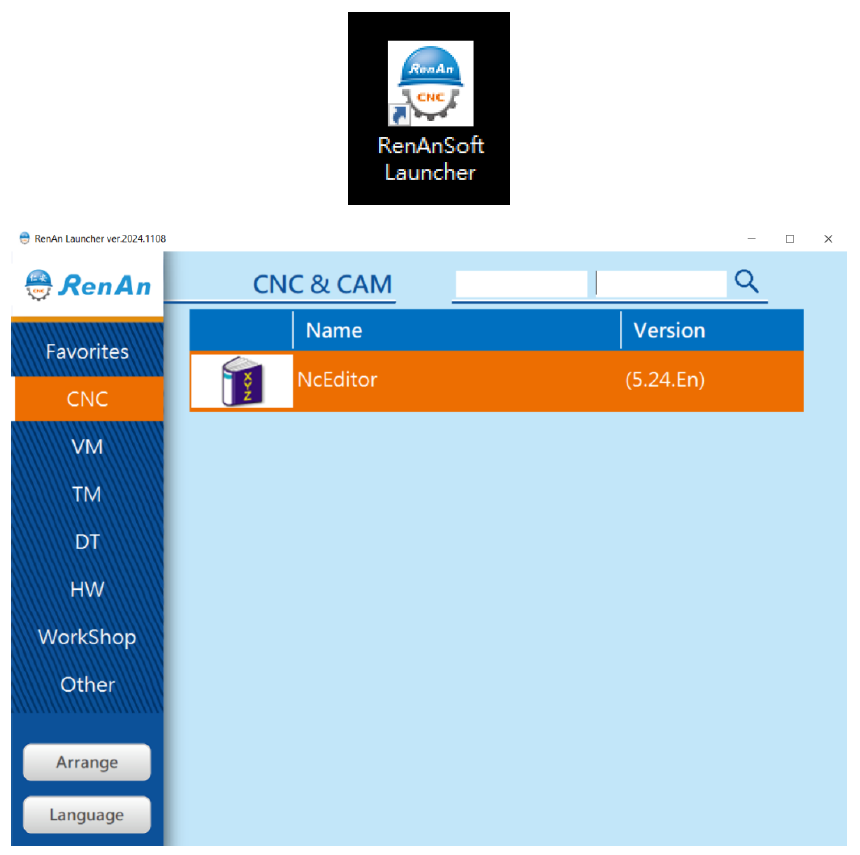
(7) After installation, a shortcut icon named "RenAnSoft Launcher" will appear on your desktop.
1.5 Uninstallation
The uninstallation process allows you to remove the CNC 2024 system from your computer.
1.5.1 Uninstallation Steps
(1) Insert the RenAn product CD into the CD/DVD drive. The installer will automatically launch in "Install/Remove" mode.
If it does not start automatically, manually run the setup executable from the CD.
Example: “D:\SetupCNC.exe” (In this example, D:\ is the drive letter for your CD/DVD drive)
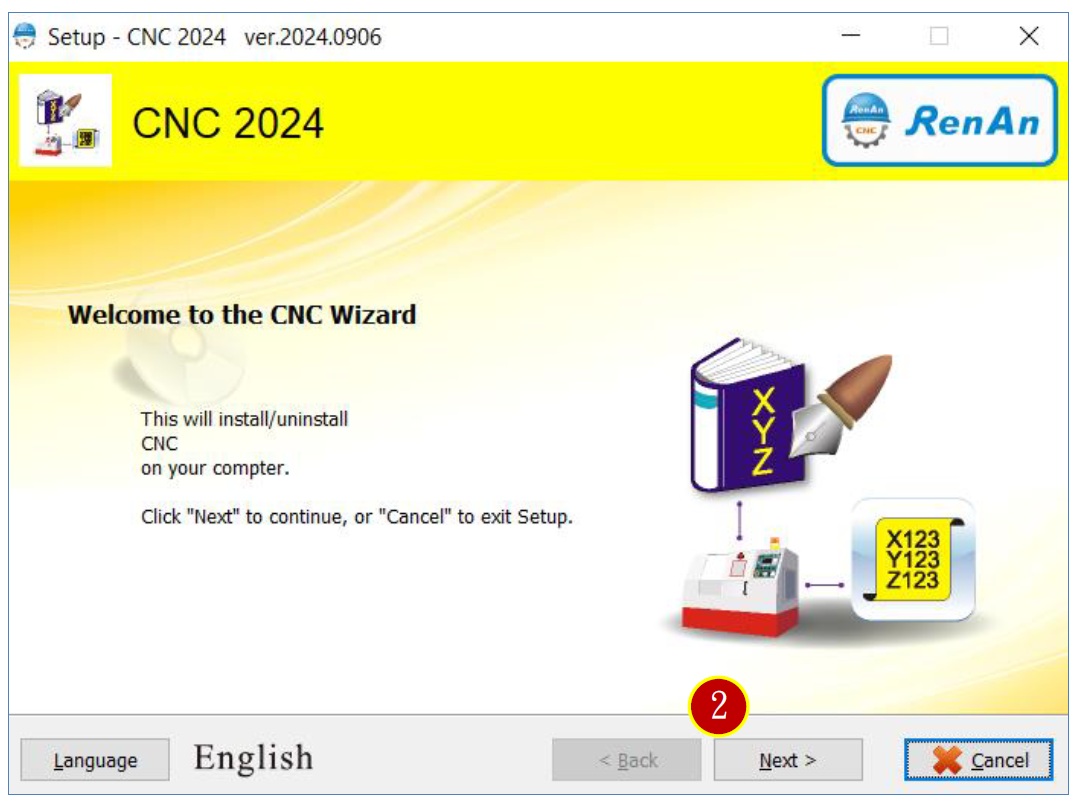
(2) On the welcome screen, click【Next】
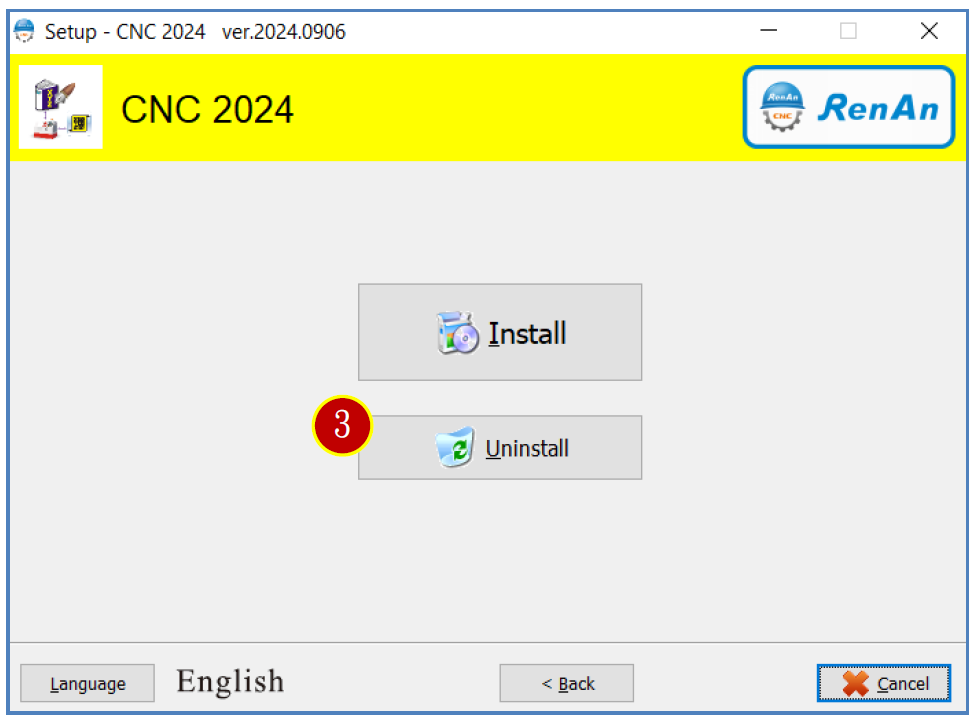
(3) Click【Uninstall】
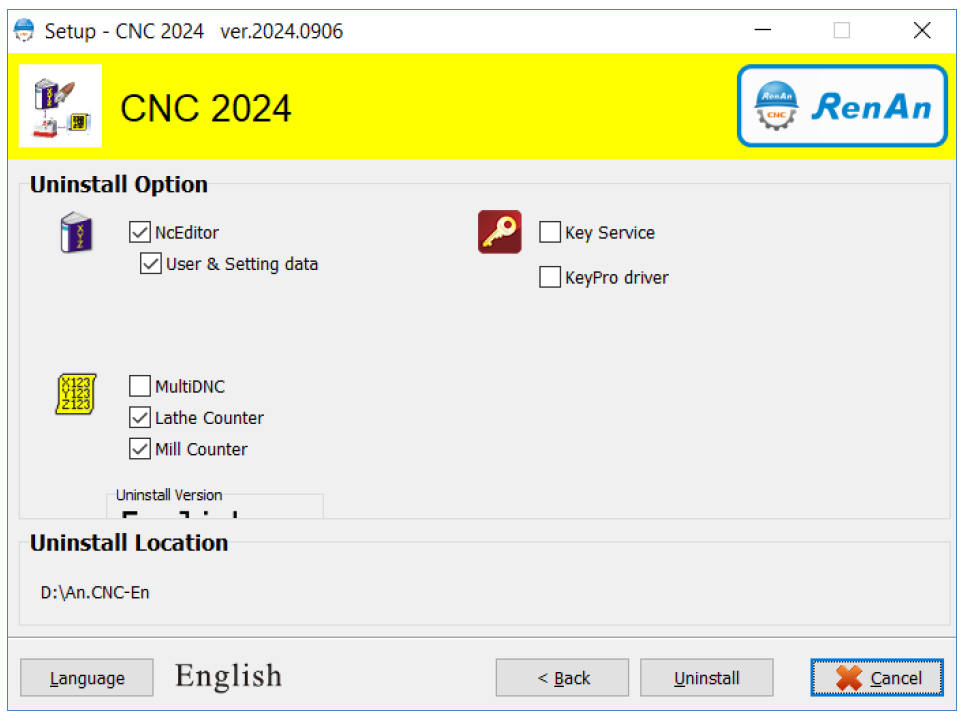
(4) In the uninstall options, select the components to uninstall:
☑NcEditor Program Editing Management + Simulation System
☑User and configuration data
□ MultiDNC CNC Multi-port Transmission
☑ Lathe Graphic Expert
☑ Milling, Drilling, and Tapping Expert
□ Key Service, selecting indicates installing Key Service
□ KeyPro Driver, selecting indicates installing KeyPro Driver
Click【Uninstall】
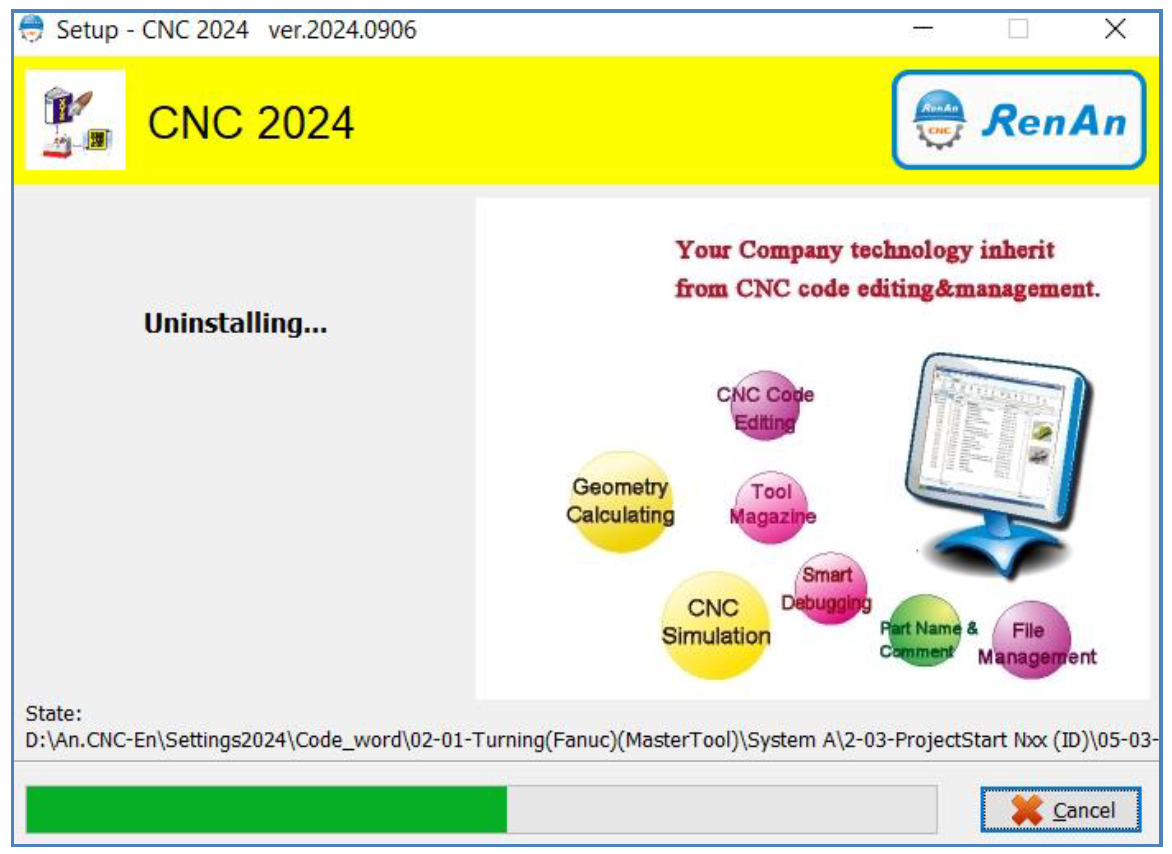
(5) Uninstallation in progress – please wait a few minutes.
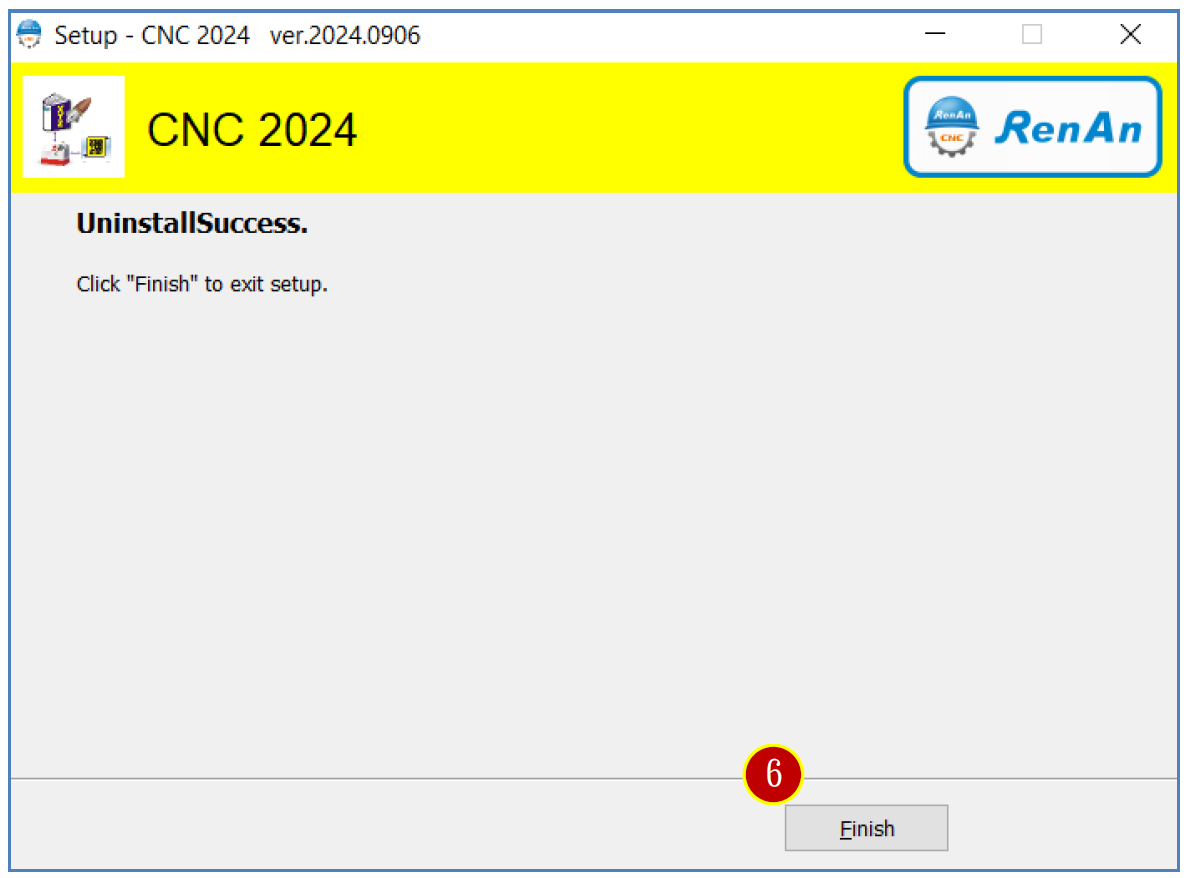
(6) Uninstallation complete – click【Finish】to exit the process.
文章區塊